
Written by: Ali-Reza Adl-Tabatabai, Founder and CEO, Gitar
Key Takeaways
- Vibe coding with Cursor speeds up prototyping by up to 10x using natural language prompts like “sleek dashboard with dark mode vibe” for rapid app development.
- Strong results depend on Composer mode with Claude 3.5 Sonnet, a tailored .cursorrules file, and imported VS Code settings.
- The core workflow follows a simple loop: describe the vibe, review the Composer plan, generate, iterate in conversation, then test in the browser.
- Advanced tools such as MCP Figma integration and image prompts connect design to code, while Gitar fixes many AI code issues, including complex logic bugs.
- Pair Cursor with Gitar to repair PRs automatically, keep builds green, and ship vibe-coded software faster.
Set Up Cursor for Fast Vibe Coding
Proper Cursor setup gives the AI enough context to generate useful, consistent code. Follow these steps to configure your environment.
1. Download and Install Cursor: Visit cursor.com and download the installer. Import your VS Code extensions, settings, and keybindings during setup so your editor still feels familiar.
2. Enable Composer Mode: Open Composer with Cmd+I on Mac or Ctrl+I on Windows. Turn on Agent mode for autonomous task handling. Use this interface for multi-file generation and complex refactors instead of editing one file at a time.
3. Select Effective Models: Choose Claude 3.5 Sonnet for Composer mode, which reaches 61.3% accuracy on CursorBench per Cursor Research. For autocomplete, select GPT-4o to get faster inline suggestions while you type.
4. Create a .cursorrules File: In your project root, create a .cursorrules file with project-specific instructions. For example, you might specify: “Write concise React components with TypeScript. Use Tailwind CSS classes, no inline styles. Environment variables only for sensitive data.”
This file acts as your AI assistant’s instruction manual. By defining these rules upfront, you keep generated code aligned with your architecture and style preferences across the entire codebase.
Run the Core Vibe Coding Workflow in Cursor
The core vibe coding loop shifts your focus from syntax to outcomes. Use this workflow to move from idea to working UI quickly.
1. Prompt Your Vibe: Start with high-level descriptions that capture the feel of the experience. Instead of “create a login form,” try “Build an airy authentication flow with modern glassmorphism design and smooth micro-interactions.”
2. Review the Composer Plan: Cursor’s Composer shows an execution plan listing which files it will create or modify. Check this plan before accepting so it matches your project structure and naming conventions.
3. Accept and Generate: After you confirm the plan, accept it. Composer then generates complete components with imports, styling, and basic functionality wired together.
4. Iterate in Conversation: Refine the output with natural prompts such as “Make the button more prominent, it should stand out” or “Add subtle hover animations to the cards.” Short feedback cycles keep the vibe consistent.
5. Test and Refine in the Browser: Use Cursor’s browser tools to run your work inside the IDE. Ask the AI to adjust layouts or interactions based on what you see until the result matches your target experience.
Production-ready add-ons can be built in 20% of traditional coding time when you follow this loop consistently.
Write Practical Vibe Coding Rules in .cursorrules
Clear .cursorrules keep AI output on track and reduce cleanup work. Use these example rules as a starting point, then adapt them to your stack.
React and Next.js Rules:
- “Use functional components with TypeScript strict mode”
- “Prefer server components over client components”
- “Place all API routes in the /app/api/ directory”
- “Use Tailwind CSS only, no inline styles”
Database and Testing Rules:
- “Route all database queries through Prisma ORM”
- “Use Jest for unit tests and Playwright for E2E tests”
- “Require at least 80% coverage for new code”
- “Run npm test before committing”
Security and Validation Rules:
- “Never hardcode API keys, always use environment variables”
- “Validate all user input with Zod schemas”
- “Handle authentication with NextAuth.js”
- “Use async/await for all asynchronous operations”
Cursor shows visual indicators when rules are active during agent operations. These cues help you confirm that your guidelines shape every generated change.
Use MCP and Figma-to-Code for Visual Vibes
Cursor’s advanced features extend vibe coding into design workflows, especially for UI-heavy projects where look and feel matter.
MCP (Model Context Protocol) Integration: Install MCP plugins to give Cursor access to external tools. The @Figma plugin supports direct design-to-code conversion by referencing Figma designs in your prompts. Type “@Figma” followed by your design description to pull in that context.
Image-Based Prompts: Upload screenshots or mockups directly to Composer with prompts like “Build this exact layout with responsive behavior.” Visual input reduces ambiguity and keeps spacing, hierarchy, and styling closer to the original design.
Composer 2 Improvements: The latest Composer 2 delivers a 37% benchmark improvement through reinforcement learning on real coding tasks. Multi-file edits become more reliable, which matters when you refactor entire flows.
These techniques shine for marketing sites, dashboards, and design-heavy apps where visual fidelity outranks complex business logic.
Avoid Common Vibe Coding Pitfalls
Vibe coding introduces new failure modes that differ from traditional hand-written development. Watch for these issues and apply targeted fixes.
Vibe Mismatch: When the output feels off, add concrete examples and constraints. Use @context to reference existing components or patterns so the AI mirrors your current style.
Iteration Bugs: Complex tasks can slow down by 19% because of extra debugging. Adjust your model choices and refine .cursorrules for the specific feature you are building to cut this overhead.
Security Vulnerabilities: AI-generated code contains 1.7 times more major issues. Manually review authentication, input validation, and database access before merging.
Technical Debt Accumulation: Vibe coding can hide shortcuts that hurt maintainability. Add explicit review steps for AI-generated code so senior engineers can catch patterns that do not age well.
Move Vibe Code to Production with Gitar
Generation is fast, but production readiness often lags behind. Teams report 91% increases in PR review time after adopting AI coding tools, which creates a new bottleneck.
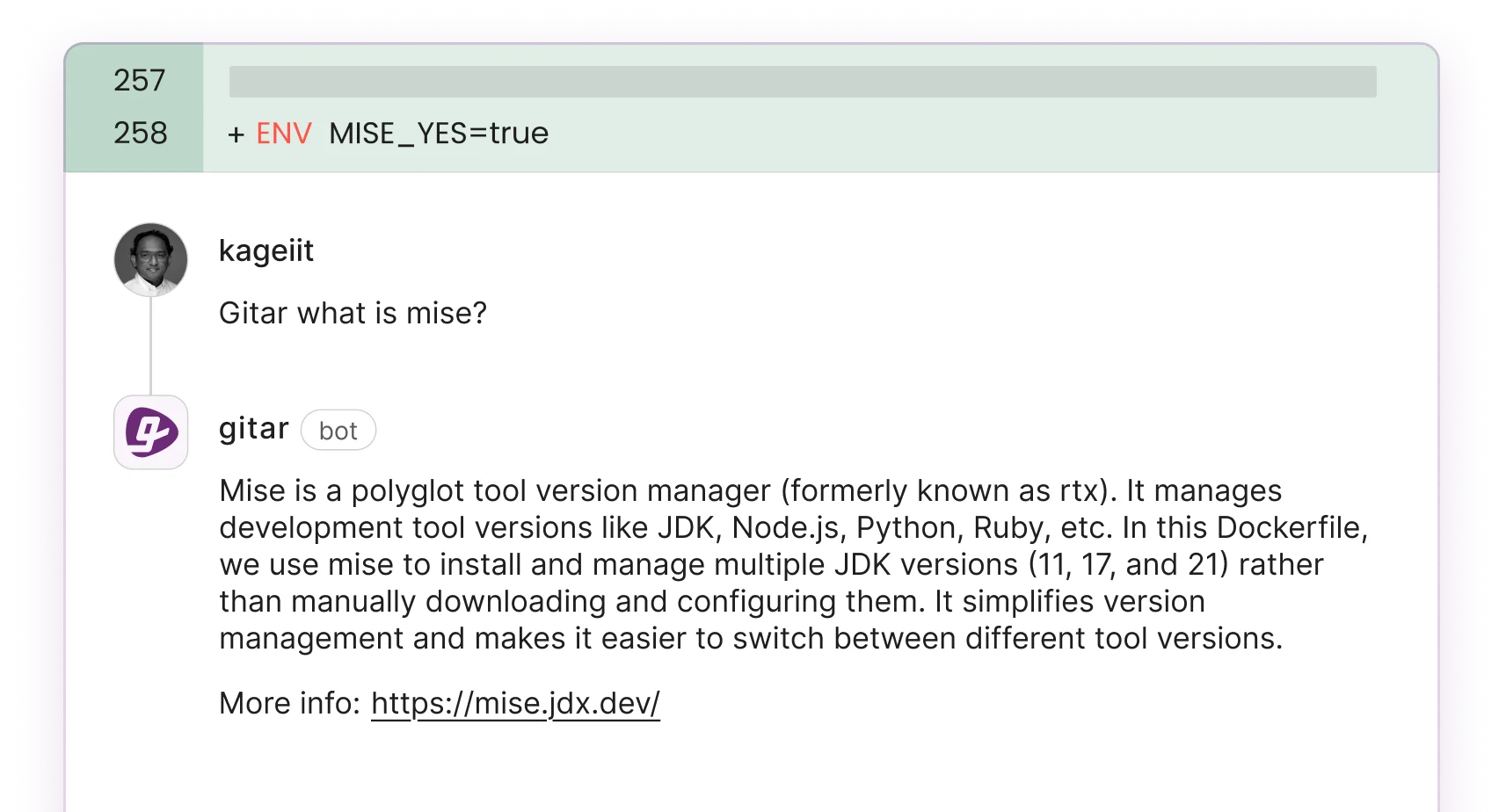
Gitar addresses this slowdown with a Healing Engine that fixes CI failures and applies review feedback instead of only suggesting changes. Use this setup to connect Cursor output to production.
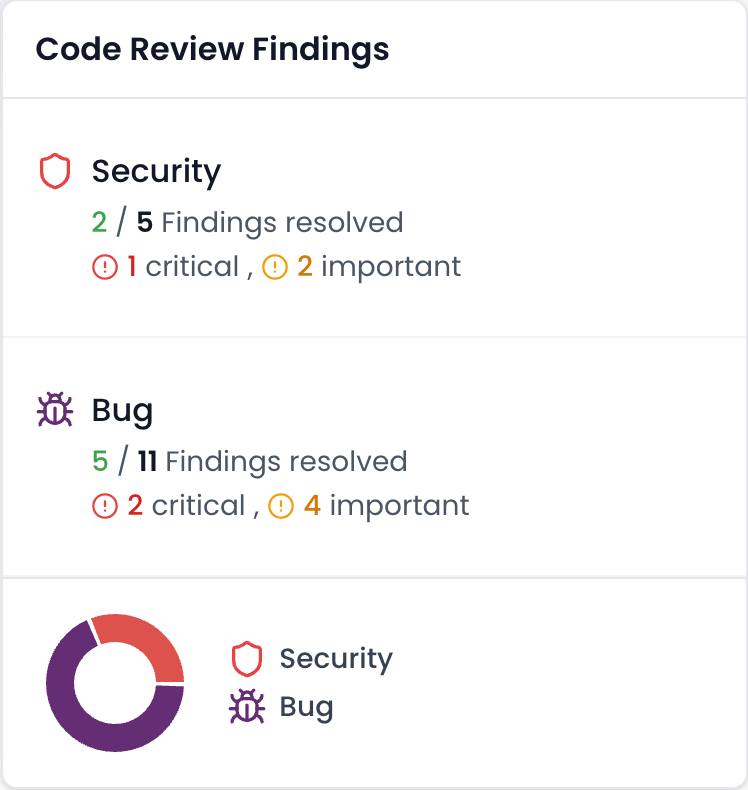
1. Install the Gitar GitHub App: Visit the Gitar documentation and install the GitHub App for your repositories by following the installation guide. Start your 14-day trial to unlock full auto-fix capabilities.
2. Configure Auto-Fix Settings: Turn on automatic CI failure resolution for lint errors, test failures, and build breaks. Gitar reads failure logs, generates fixes with full codebase context, and commits working solutions. The configuration section in the documentation explains every available setting.
3. Test on Vibe-Coded PRs: Open a PR with Cursor-generated changes and let Gitar handle CI issues. You see one clean dashboard comment instead of a flood of notifications, while the system works toward a green build.
The following comparison shows how Gitar’s auto-fix capabilities differ from suggestion-only tools:
|
Capability |
CodeRabbit/Greptile |
Gitar |
|
Auto-apply fixes |
No |
Yes |
|
CI auto-fix |
No |
Yes |
|
Green build guarantee |
No |
Yes |
|
Single comment interface |
No |
Yes |
Start your 14-day trial to experience the difference between suggestion engines and true code healing.
Conclusion: Pair Cursor and Gitar for a Complete Workflow
Vibe coding with Cursor changes how you build software by turning natural language ideas into working prototypes quickly. Real productivity gains appear when you combine that speed with automated quality checks.
Cursor covers the creative generation phase, while Gitar turns vibe-coded PRs into reliable, production-ready changes. Together they form a full pipeline: generate fast, validate automatically, and ship with confidence.
FAQ
What are the best .cursorrules for vibe coding?
Effective .cursorrules specify your tech stack, coding standards, and security requirements. For React projects, include rules such as “Use functional components with TypeScript strict mode,” “Tailwind CSS only, no inline styles,” and “Validate all user input with Zod schemas.” For backend work, add rules like “Route database queries through Prisma ORM” and “Never hardcode API keys, use environment variables.” Specific, project-level guidance keeps AI-generated code consistent with your architecture and conventions.
How does Gitar fix bugs in Cursor-generated code?
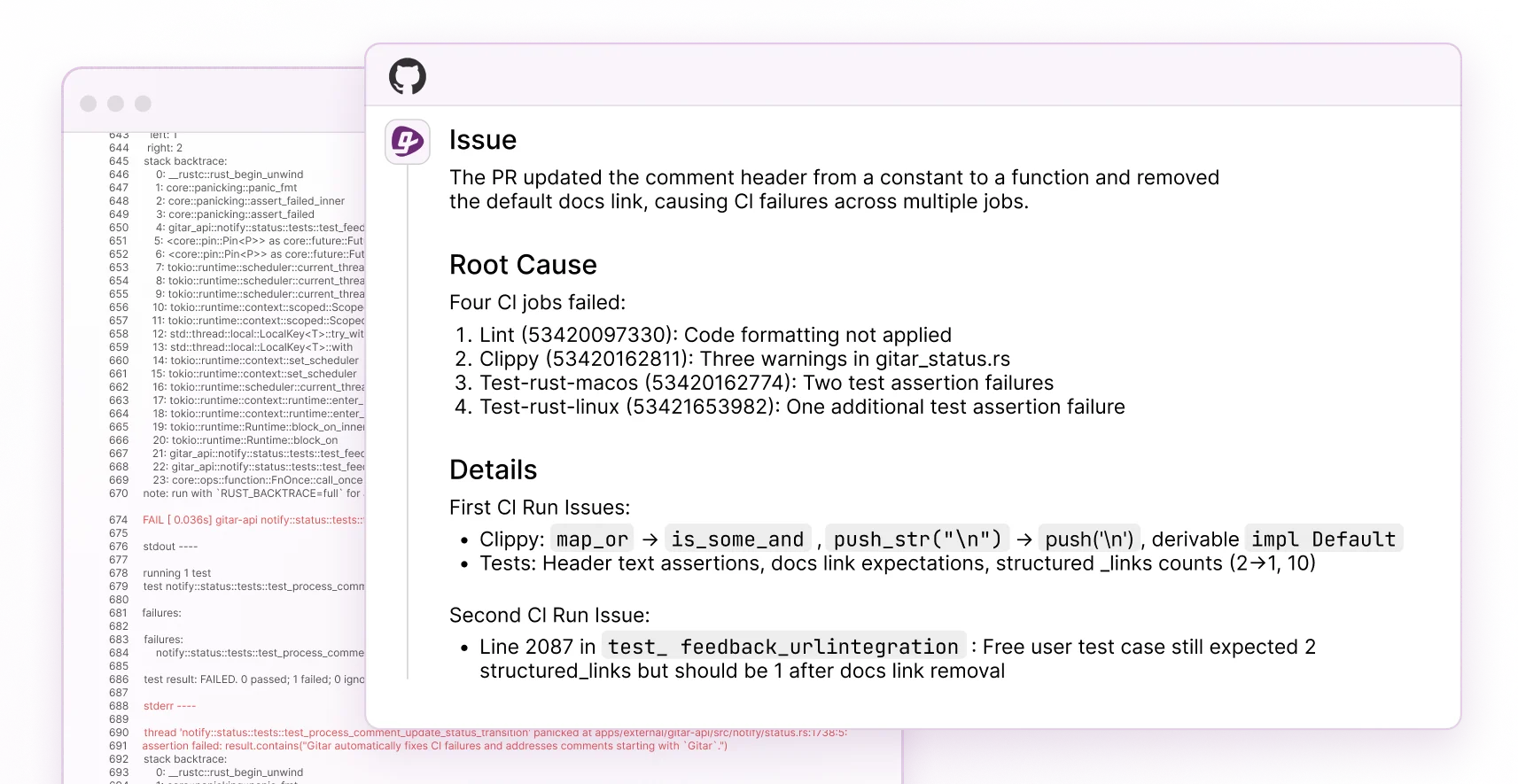
Gitar’s Healing Engine analyzes CI failures, identifies root causes from logs, and generates fixes with full codebase context. It validates that the fixes work, then commits the changes. Unlike suggestion tools that only leave comments, Gitar applies real fixes that aim for a green build. When lint errors, test failures, or build breaks appear in your PRs, Gitar resolves them automatically.
Does vibe coding work the same way on Cursor for Mac?
Yes, vibe coding workflows stay consistent across Mac, Windows, and Linux. The same keyboard shortcuts apply, such as Cmd+I for Composer on Mac and Ctrl+I on Windows. .cursorrules files behave the same, and features like MCP integration and Figma-to-code work uniformly. Only standard OS-level shortcuts differ.
How does Gitar compare to other AI code review tools?
Traditional AI code review tools such as CodeRabbit and Greptile charge $15–30 per developer for suggestion-only features that still require manual work. Gitar adds auto-fix capabilities, CI failure resolution, green build guarantees, and a single clean comment interface instead of notification spam. Competitors leave suggestions in comments, while Gitar implements fixes and validates them, which automates the review-to-deployment pipeline.
Can I trust automated commits from AI tools?
Gitar supports configurable trust levels so you can ramp up safely. Start in suggestion mode, where you approve every fix, then enable auto-commit for limited cases such as lint errors or formatting issues. You keep control over which fixes apply automatically. For complex logic changes, Gitar can propose patches while still requiring manual approval, which balances automation with human oversight.